Email Segmentation: A Step-by-Step Guide (2026)
Email segmentation step by step: import contacts with tags, build segments from rules, check the live count and send a broadcast to just one group.

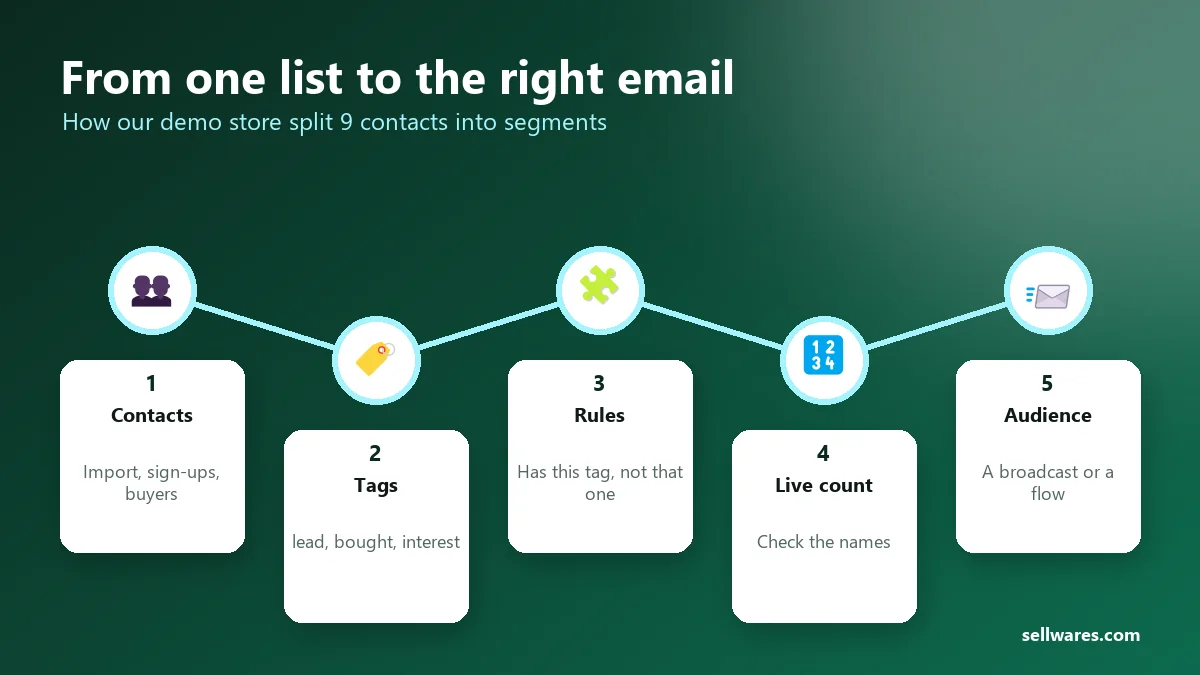
Email segmentation means splitting your list into smaller groups by what people did, so each email goes only to the people it fits. A buyer gets the next step, a new subscriber gets a welcome, and nobody gets an offer for something they already own. If you sell digital products, you can do this from tags and purchases you already have.
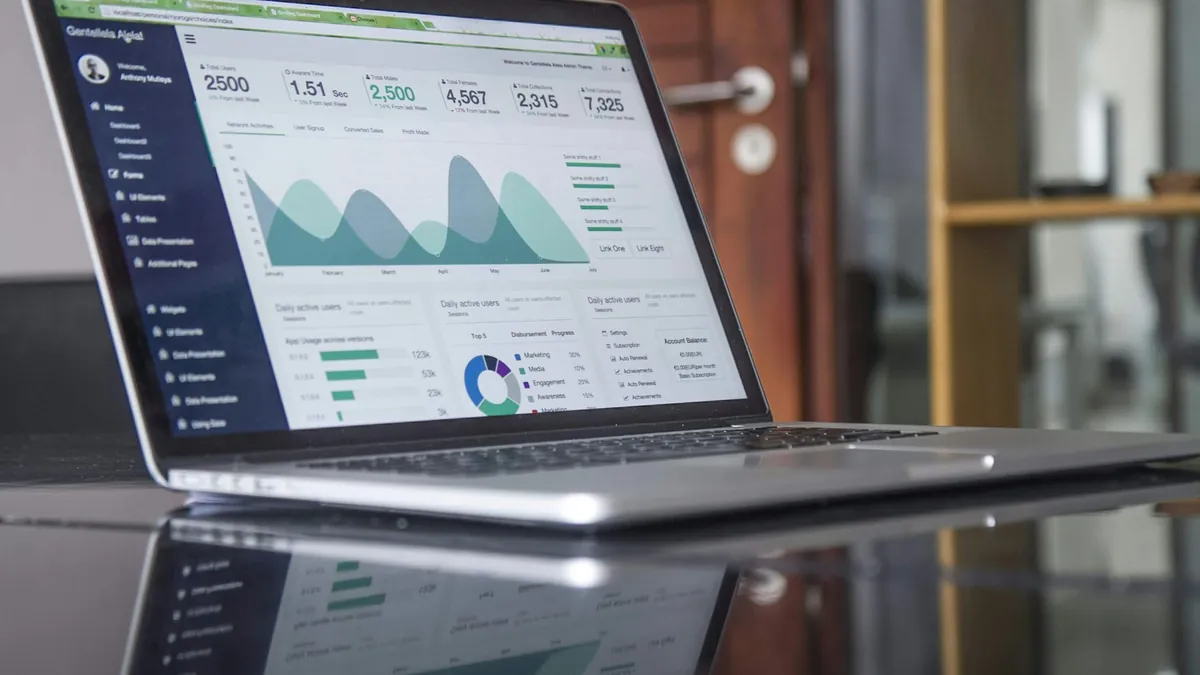
Photo: Mariia Berezovsky on Unsplash
We built three segments on 8 November 2026 in Calm Money Studio, our demo store for freelancers' budget templates. From the first import to a saved broadcast and flow took about 28 minutes. Every name and address below is a demo.
Email segmentation: the short answer
- Collect a few facts on every contact: where they came from and what they took or bought.
- Turn those facts into tags, such as "lead: invoice checklist".
- Build a segment from rules, such as "has this tag, does not have that one".
- Check the live count and the names before you save.
- Pick the segment as the audience of a broadcast or a flow.
- Let it update itself as people join, buy or go quiet.
What is email segmentation? It is the practice of dividing one email list into groups that share a trait or an action, then writing to each group on its own. The email segmentation definition most tools use is the same: a saved set of rules that decides who gets a message.
What is email list segmentation in practice? It is the difference between "everyone" and "the four people who took the checklist but never bought the planner".
Why is segmentation important in email marketing?
A list is not one reader. In our demo store, nine people sat in one list. Three had bought the Budget Planner. Four had only taken a free checklist. Sending the same launch email to all nine would have asked three buyers to pay again.
Segments fix three things. People get fewer emails that miss. You stay further from spam complaints, which matter to inbox providers. Google's sender guidelines ask senders to keep their spam rate below 0.30% and to aim for under 0.10% (Google Workspace Admin Help). And you can send more often to the people who want it, without tiring everyone else.
Before you start
You need a Sellwares account and a few contacts. Contacts, tags and segments are on every plan. The Free plan holds 250 contacts and 1,000 emails a month. Creator (€29 a month) holds 5,000 contacts and 25,000 emails. To send a broadcast you also need a verified sending domain; the app checks its SPF, DKIM and DMARC records first. Building segments needs none of that. Time: about 30 minutes for the steps below.
How to segment your email list, step by step
On a phone, tap any screenshot to open it full size and zoom in.
Open Email > Contacts
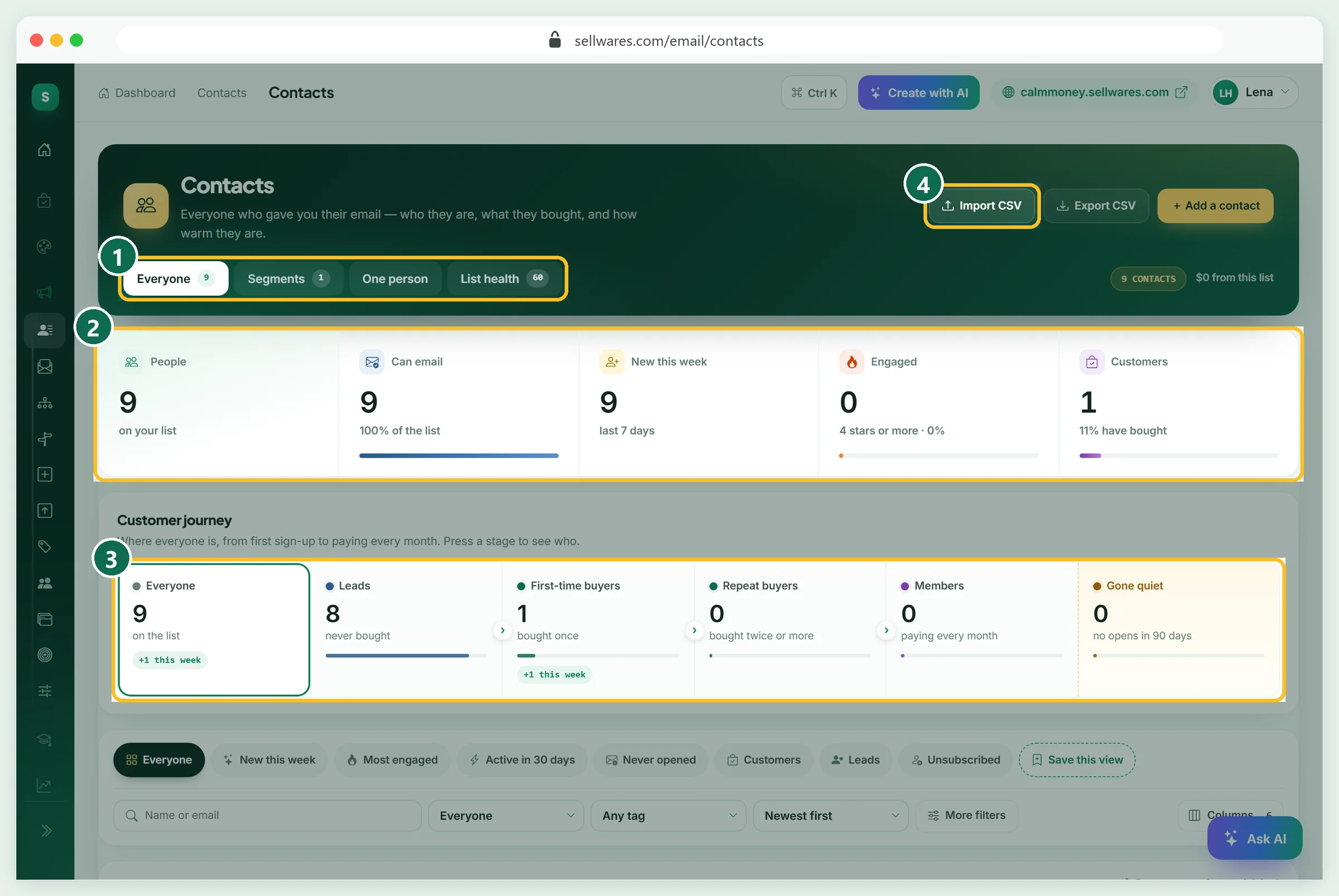
Open Contacts in the Market menu. The tabs at the top (1) switch between Everyone, Segments, One person and List health. The cards (2) count people, who can be emailed, new this week, engaged and customers. Customer journey (3) sorts everyone into leads, first-time buyers, repeat buyers, members and gone quiet. Press a stage to see who is in it. Import CSV (4) brings in a list from another tool.
Import your list with tags
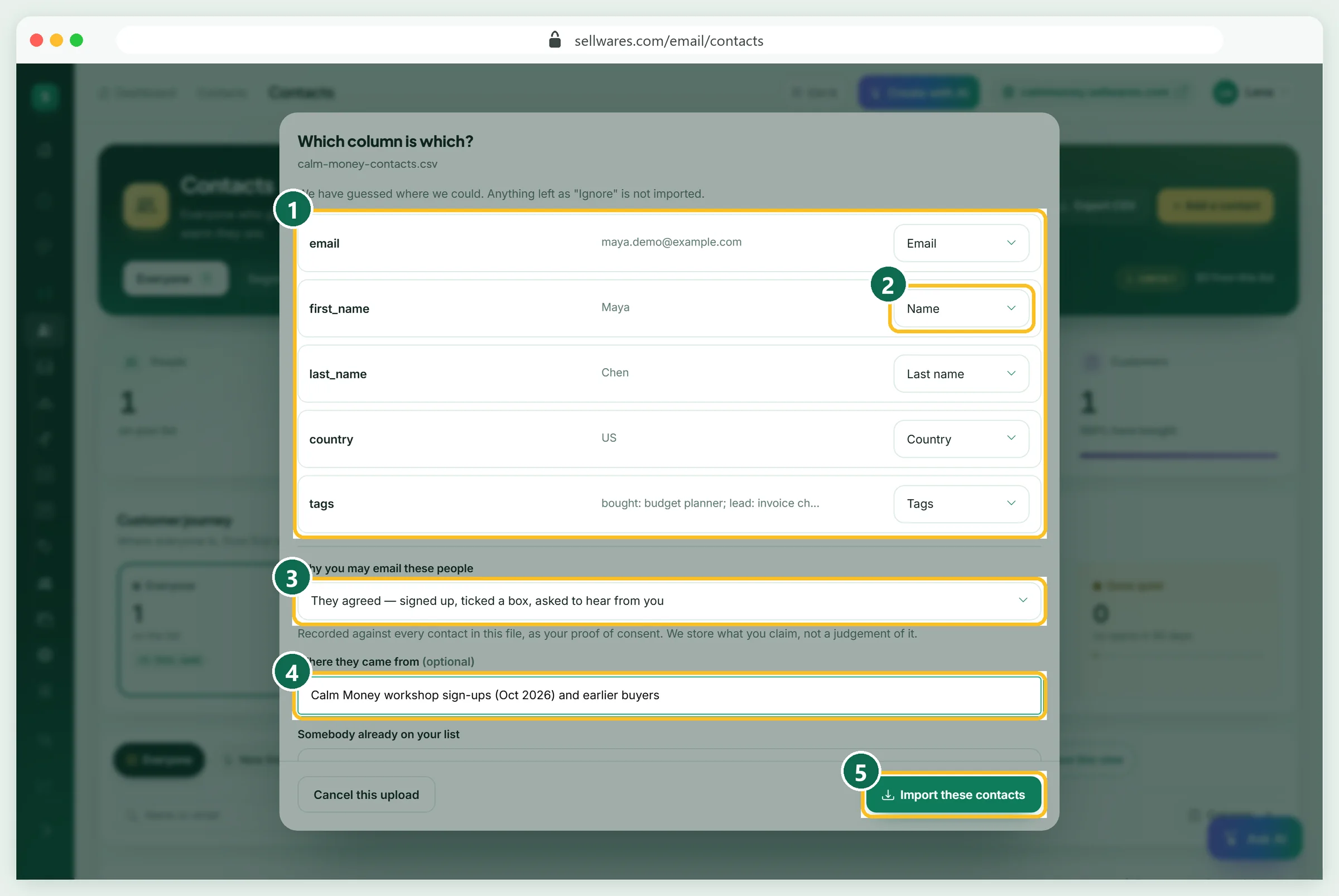
We uploaded a CSV with eight demo people: email, first name, last name, country and a tags column. The app guessed email, country and tags (1). It left first and last name on "Ignore", so we set them to Name and Last name by hand (2). Put several tags in one cell with a semicolon between them.
Then answer Why you may email these people (3). We chose "They agreed", because the demo list signed up at a workshop. Where they came from (4) is a note stored with each contact as proof of consent. Press Import these contacts (5). Our eight people arrived in under four minutes, with three new tags. Duplicates are dropped, and a file never re-subscribes anyone who left.
Filter by tag and tag people in bulk
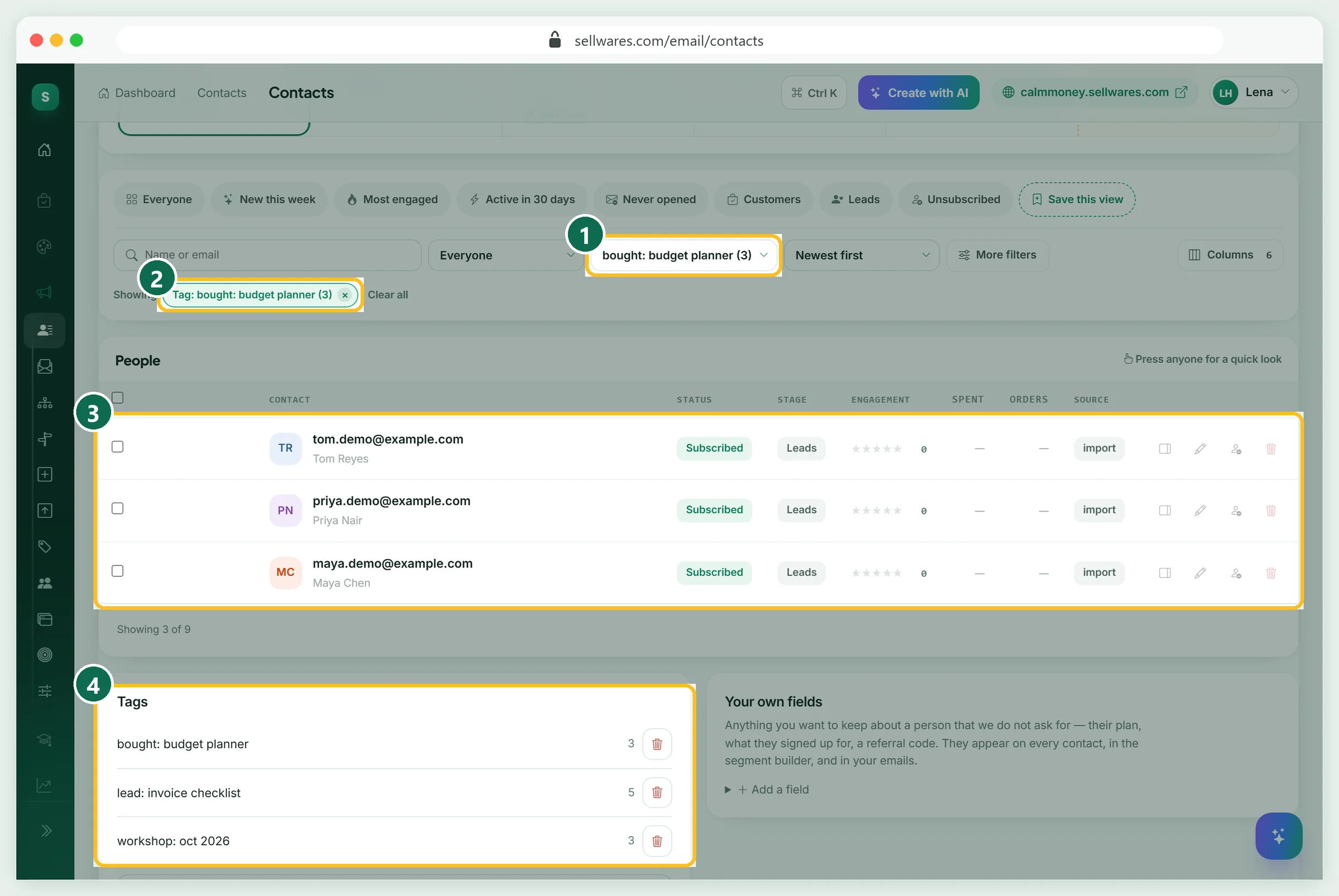
Pick a tag in the Tag menu (1). The chip (2) shows the filter, and the table (3) shows who matches. The Tags panel (4) counts every tag. Our "bought: budget planner" tag held three people.
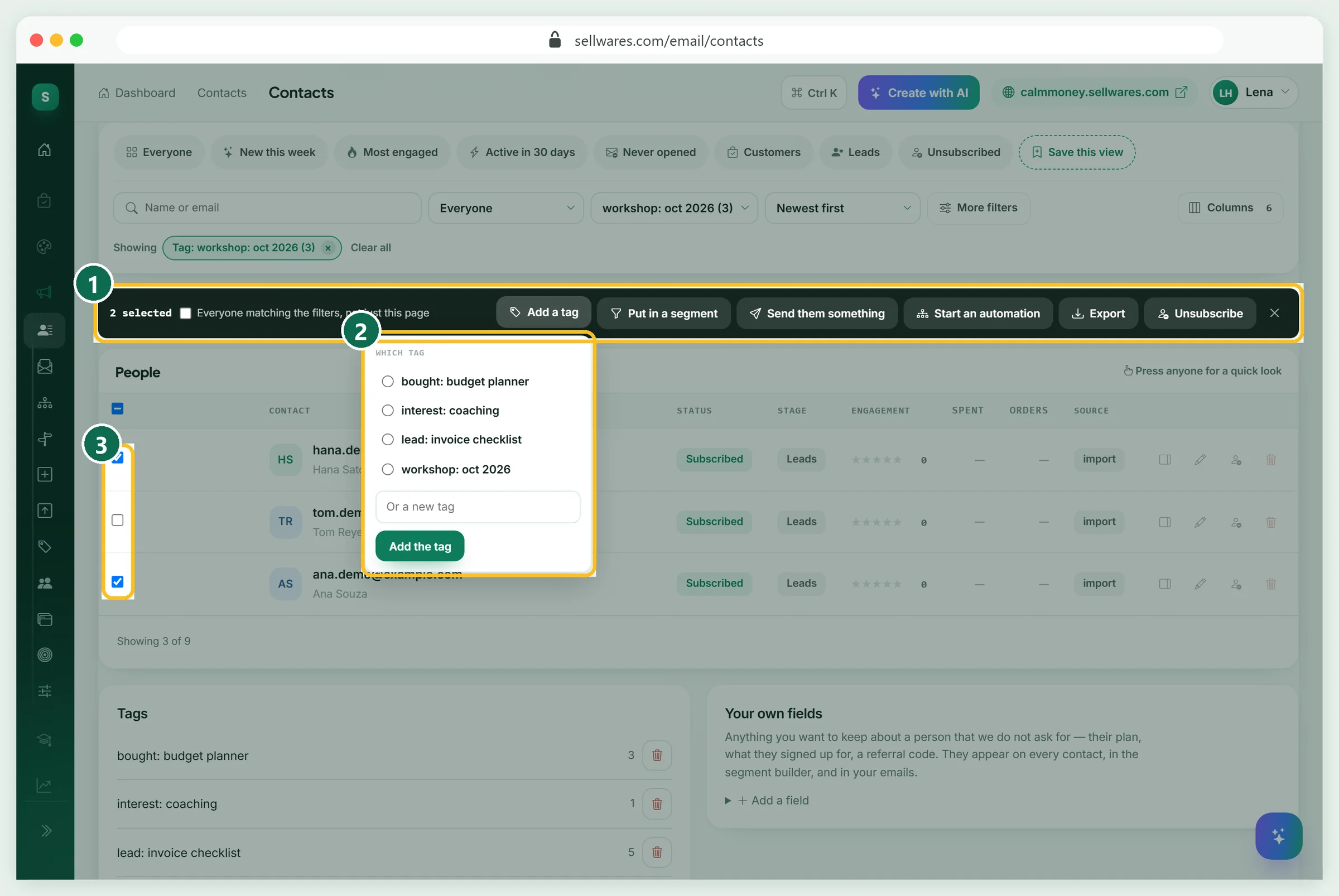
To tag several people at once, tick them. A dark bar appears (1) with Add a tag, Put in a segment, Send them something, Start an automation, Export and Unsubscribe. Under Add a tag (2), pick a tag or type a new one. We added "interest: coaching" to two workshop guests (3).
Read one contact's profile
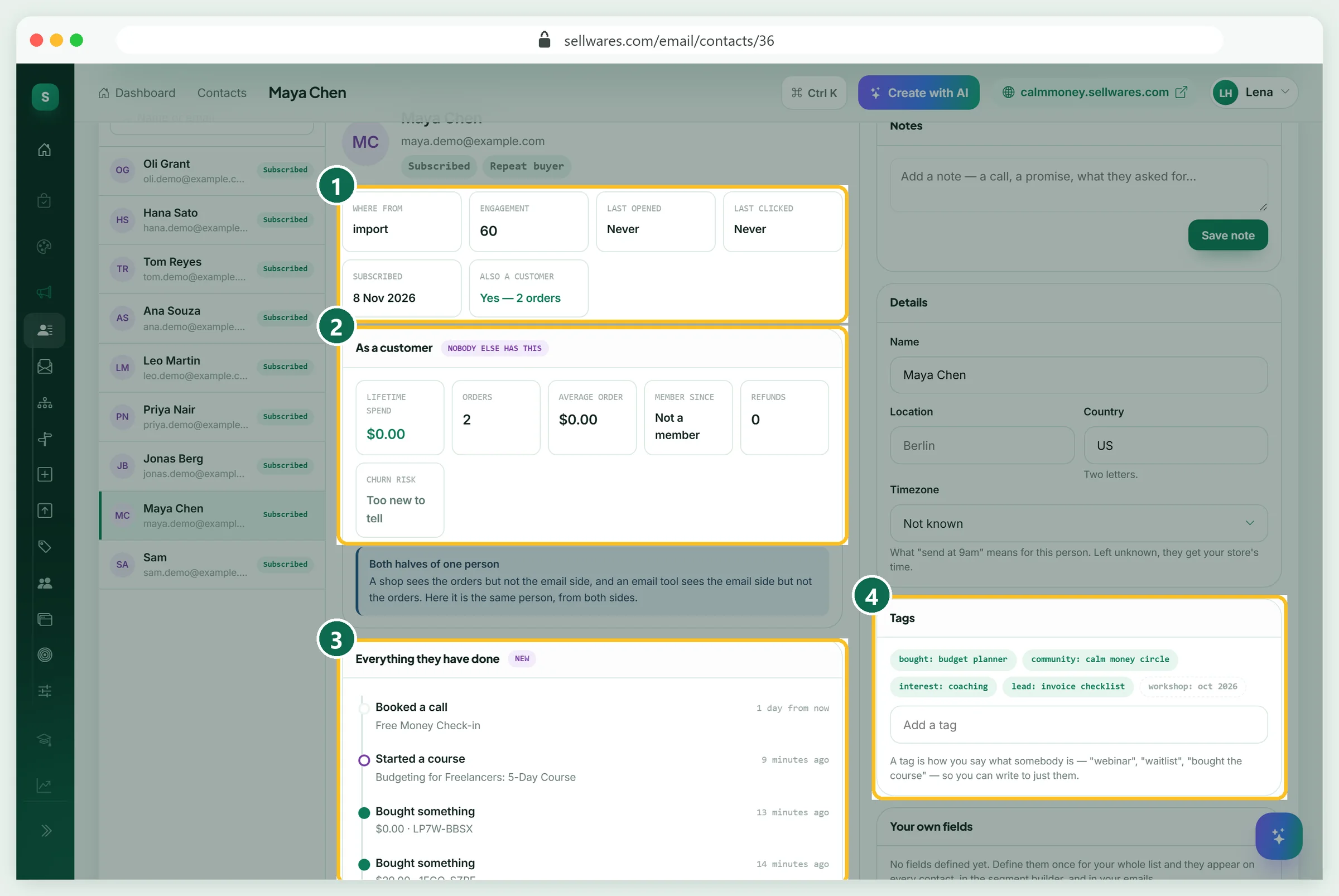
Click a name to open One person. The top cards (1) show where they came from, engagement, last open and last click. As a customer (2) adds lifetime spend, orders and churn risk. Everything they have done (3) is the timeline: orders, bookings, course starts, and the day they joined. Tags (4) lists what is on them.
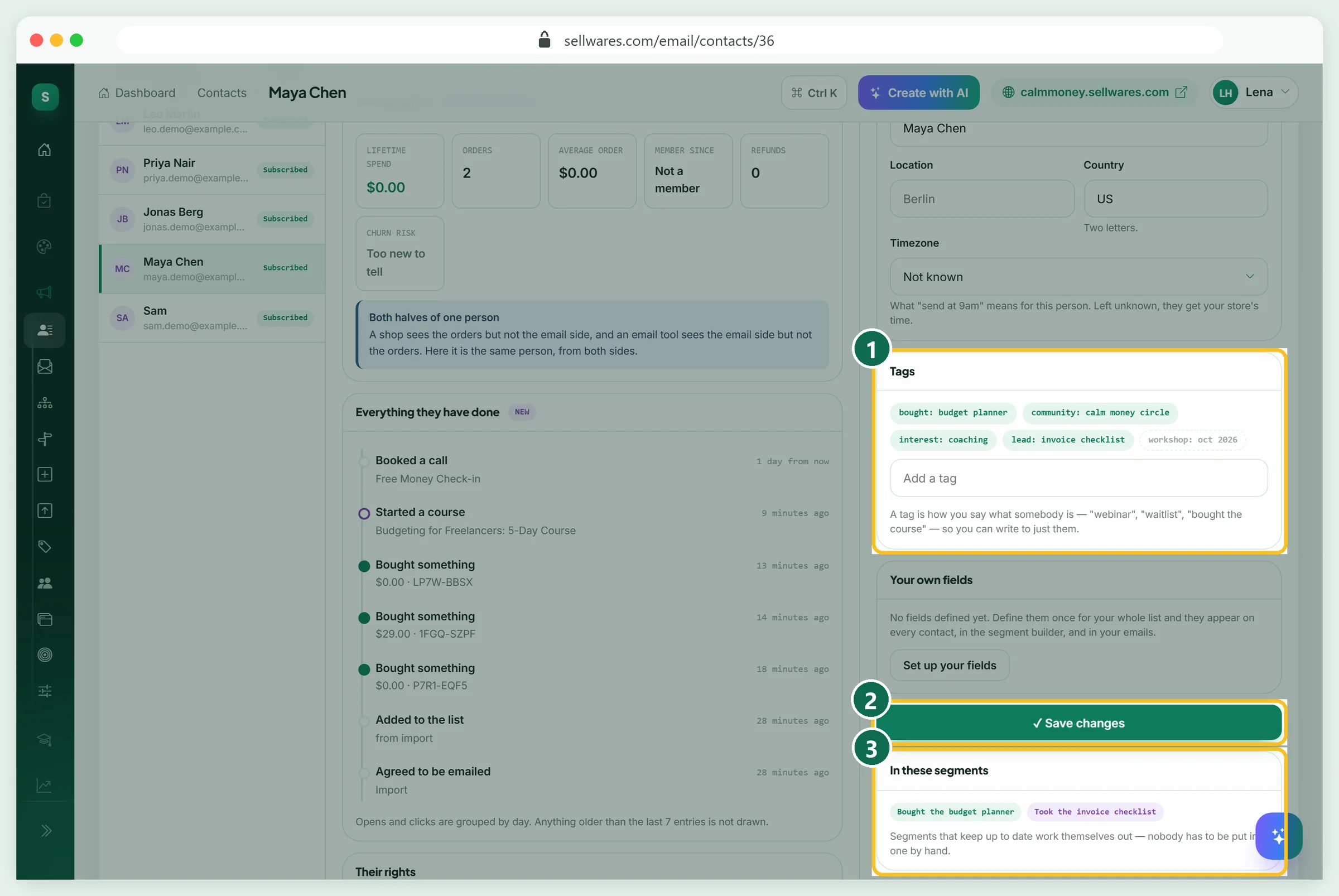
Type a tag in Add a tag (1) and press Save changes (2). In these segments (3) shows which saved segments include this person. Below sits Proof of consent: how, when and on what basis they joined.
Build your first segment from a tag
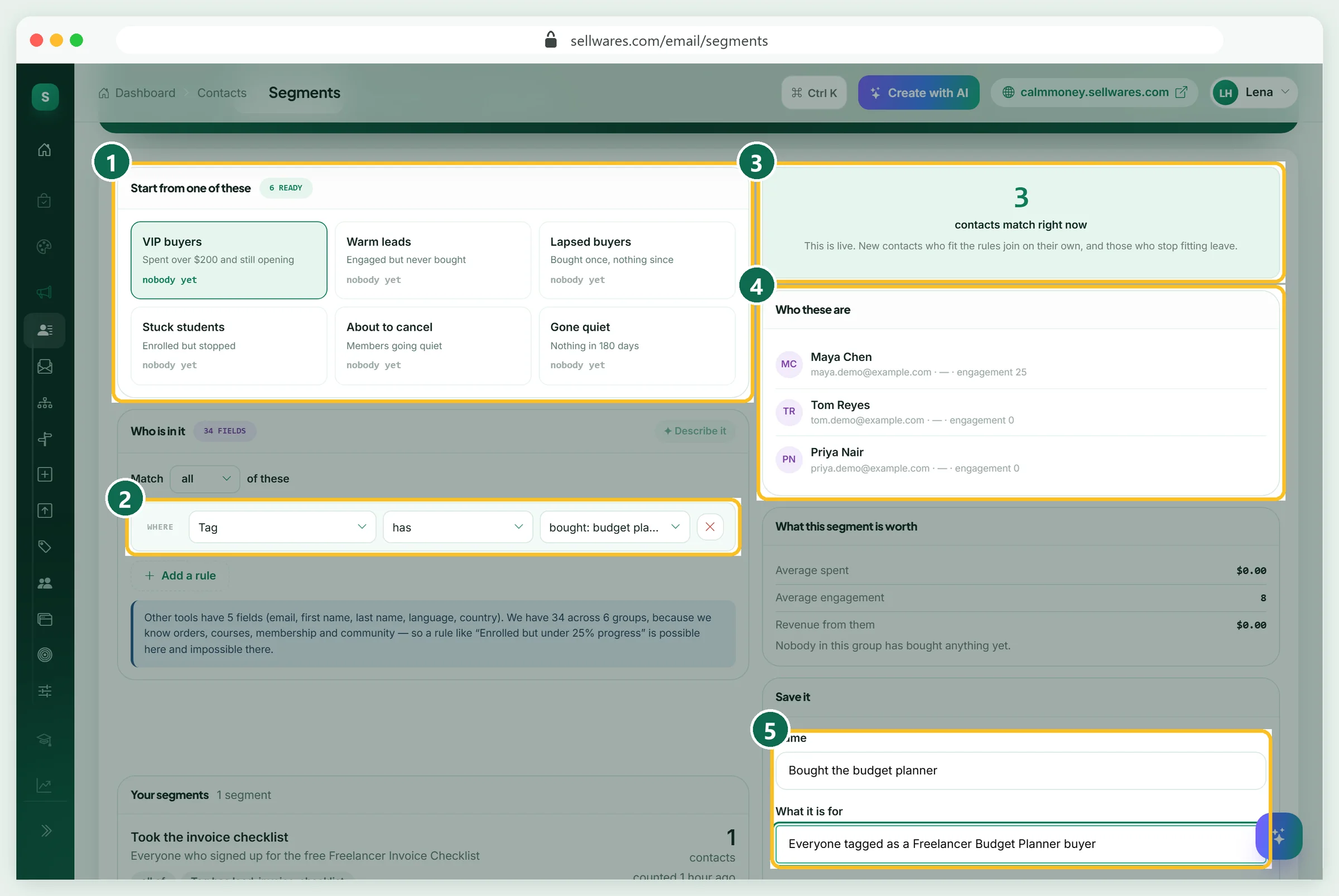
Open the Segments tab. Start from one of these (1) offers six ready rules, such as "Warm leads: engaged but never bought" and "Gone quiet: nothing in 180 days". We started clean: Tag has "bought: budget planner" (2). The live count (3) said 3, and Who these are (4) named them. Name it and add a note (5): ours is "Bought the budget planner". Press Save this segment.
The builder has 34 fields in six groups: contact details, email behaviour, purchases, courses, membership, and community with bookings.
Combine rules: lead, no purchase yet
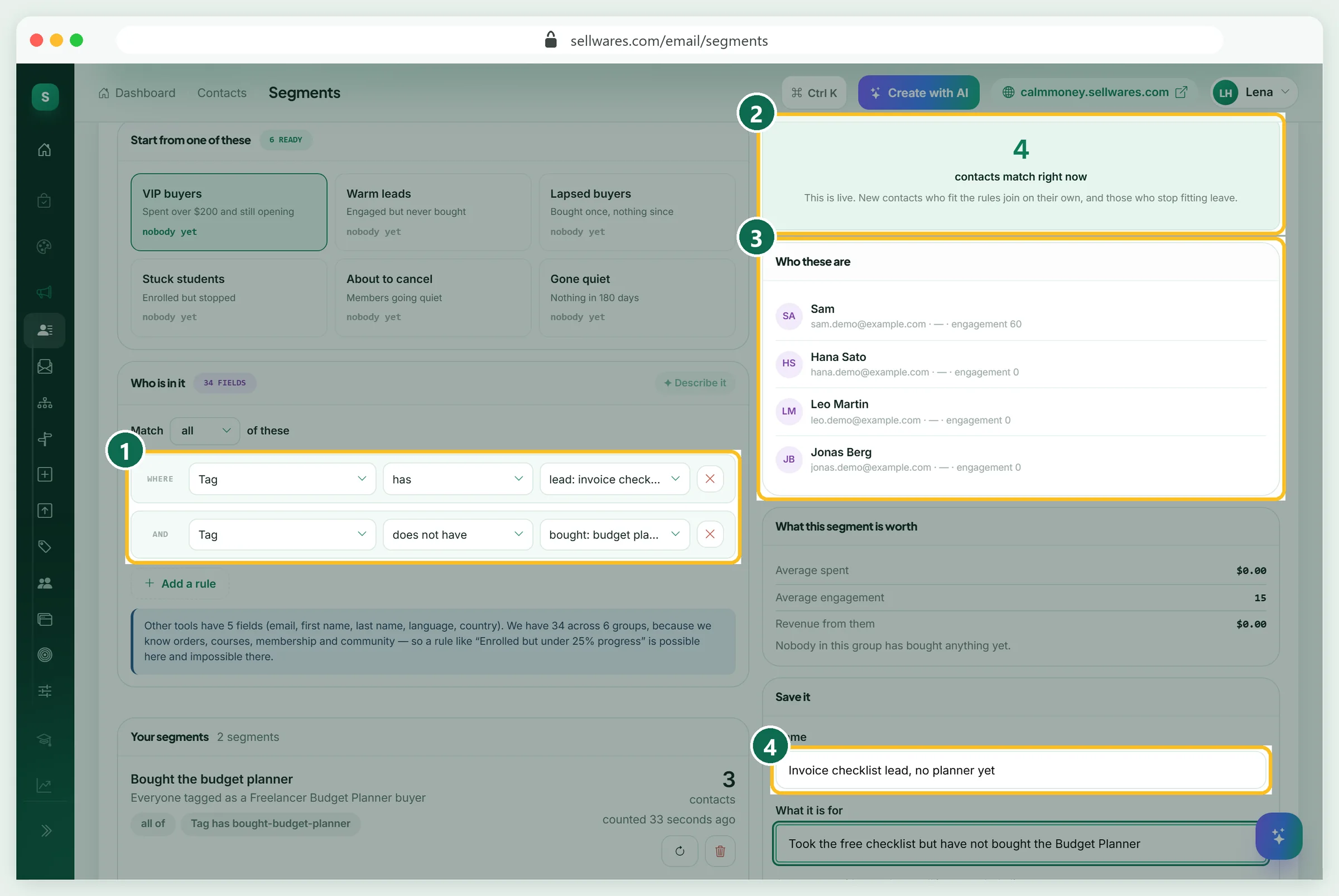
This is the segment that pays. Keep Match all of these, then add two rules (1): Tag has "lead: invoice checklist" and Tag does not have "bought: budget planner". The count (2) said 4, and the names (3) matched our list. We saved it as "Invoice checklist lead, no planner yet" (4).
We also tried Orders is 0 in place of the second rule. The count dropped to 3. Sam had taken the free checklist, and a free download counts as an order. So "no purchase" should come from a tag, or from Total spent is at most 0.
Add an engagement segment and check the counts
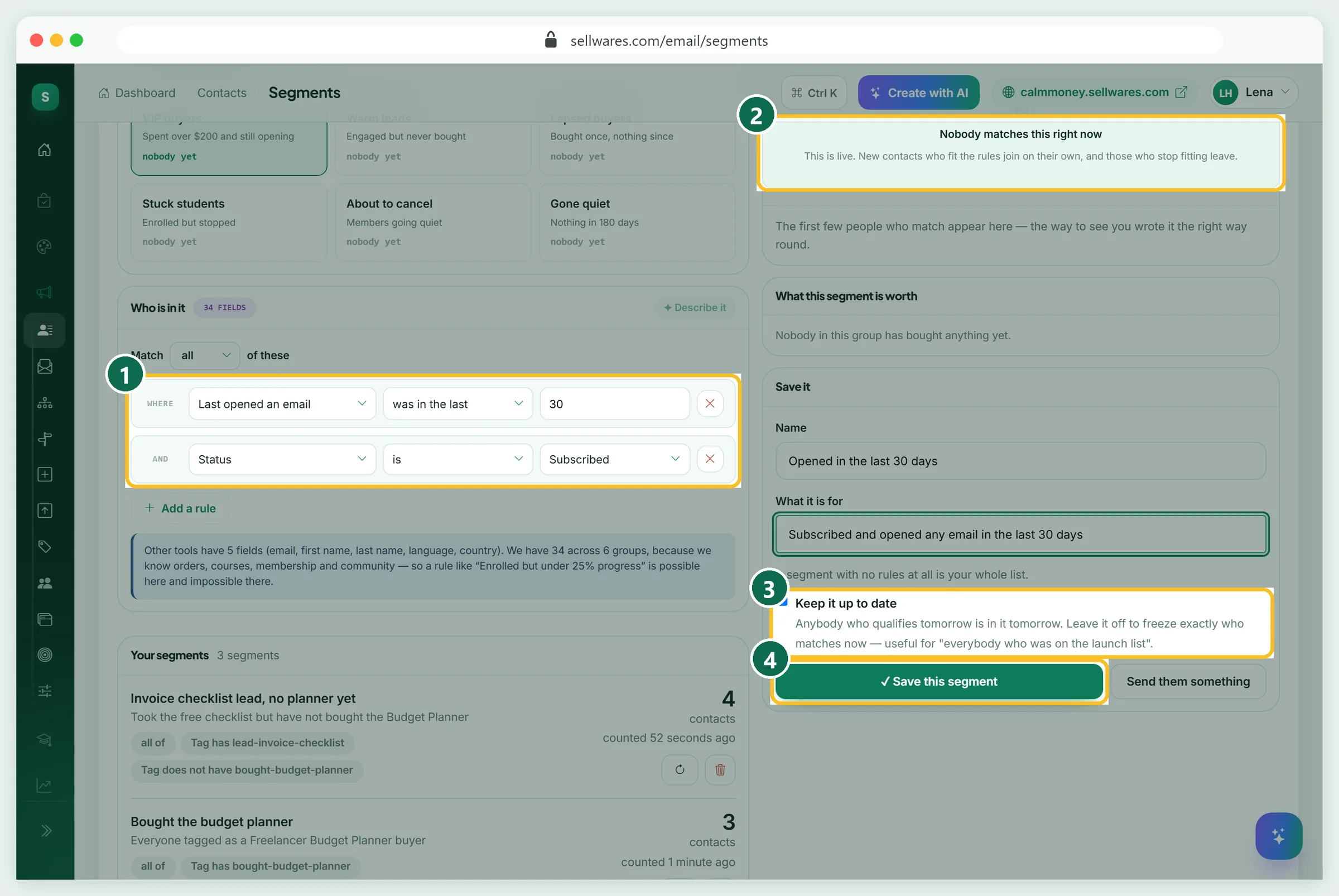
For "Opened in the last 30 days" we set Last opened an email was in the last 30 days and Status is Subscribed (1). The count said "Nobody matches this right now" (2). That is honest: the demo list had never been mailed, so nobody had opened anything. Leave Keep it up to date on (3) and save (4). People join on their own after the first send.
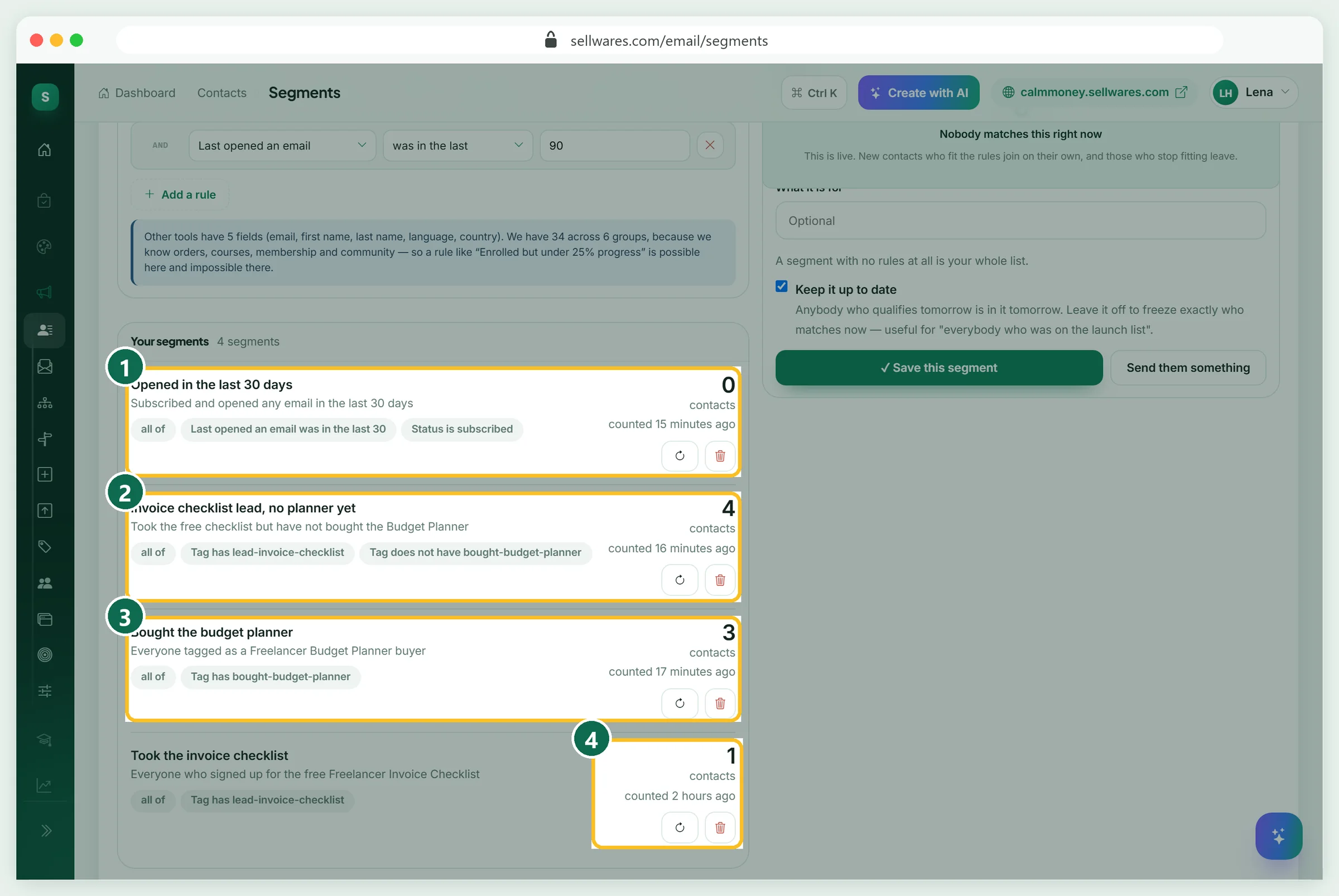
Your segments lists each one with its rules and count (1, 2, 3). A count is stored when it is made. An older segment in our store still said 1 while its tag held 5 people, because nothing had recounted it (4). Press the round arrow to recount. Untick Keep it up to date only for a frozen list, such as "everyone on the launch list".
Send a broadcast to a segment
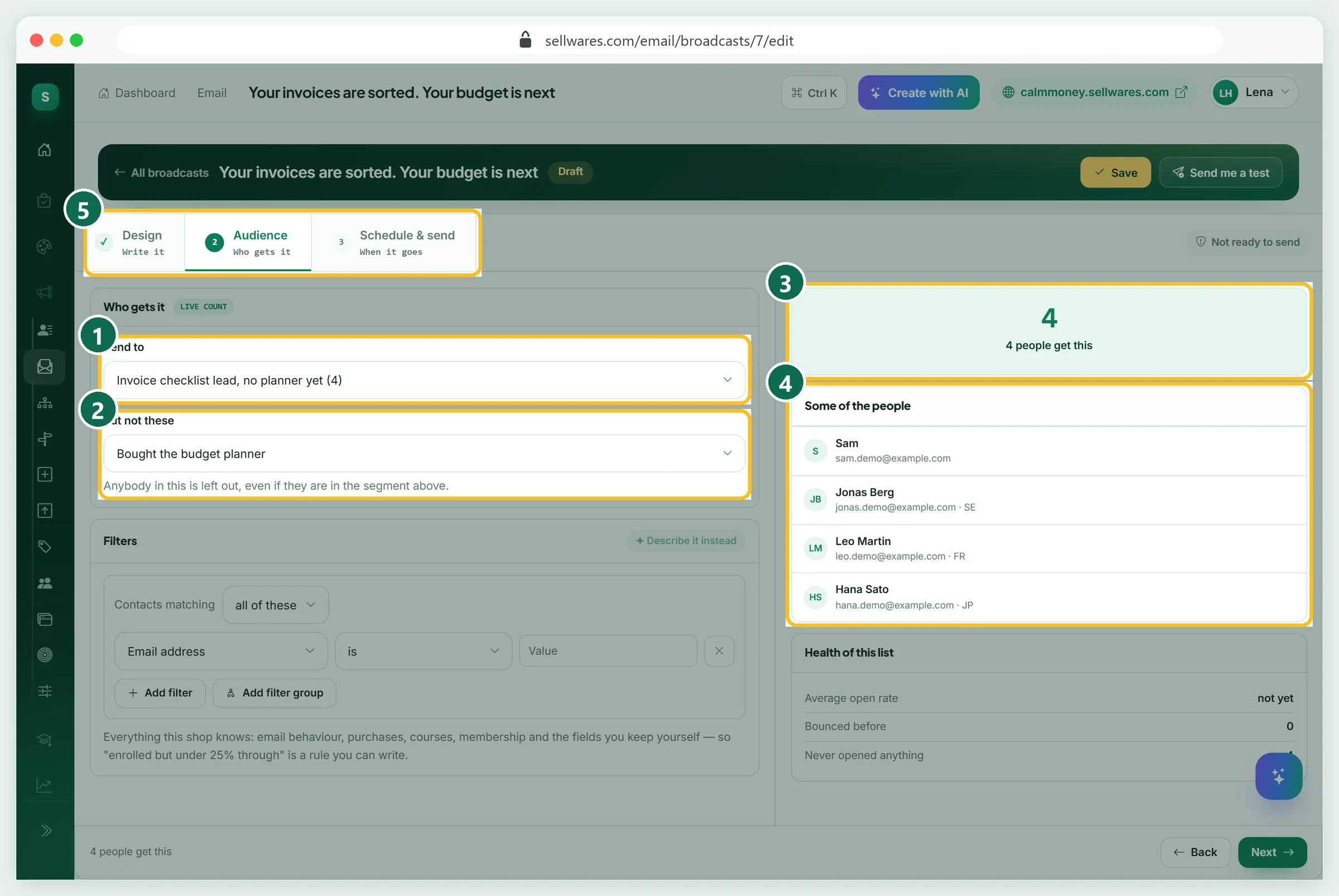
Open Email, choose Start blank, give it a name and press Start writing. We wrote a short note pointing checklist leads to the Budget Planner. On the Audience tab (5), set Send to to the segment (1). But not these (2) removes a second group; we excluded "Bought the budget planner" as a safety net. The live count (3) showed 4, with the names (4).
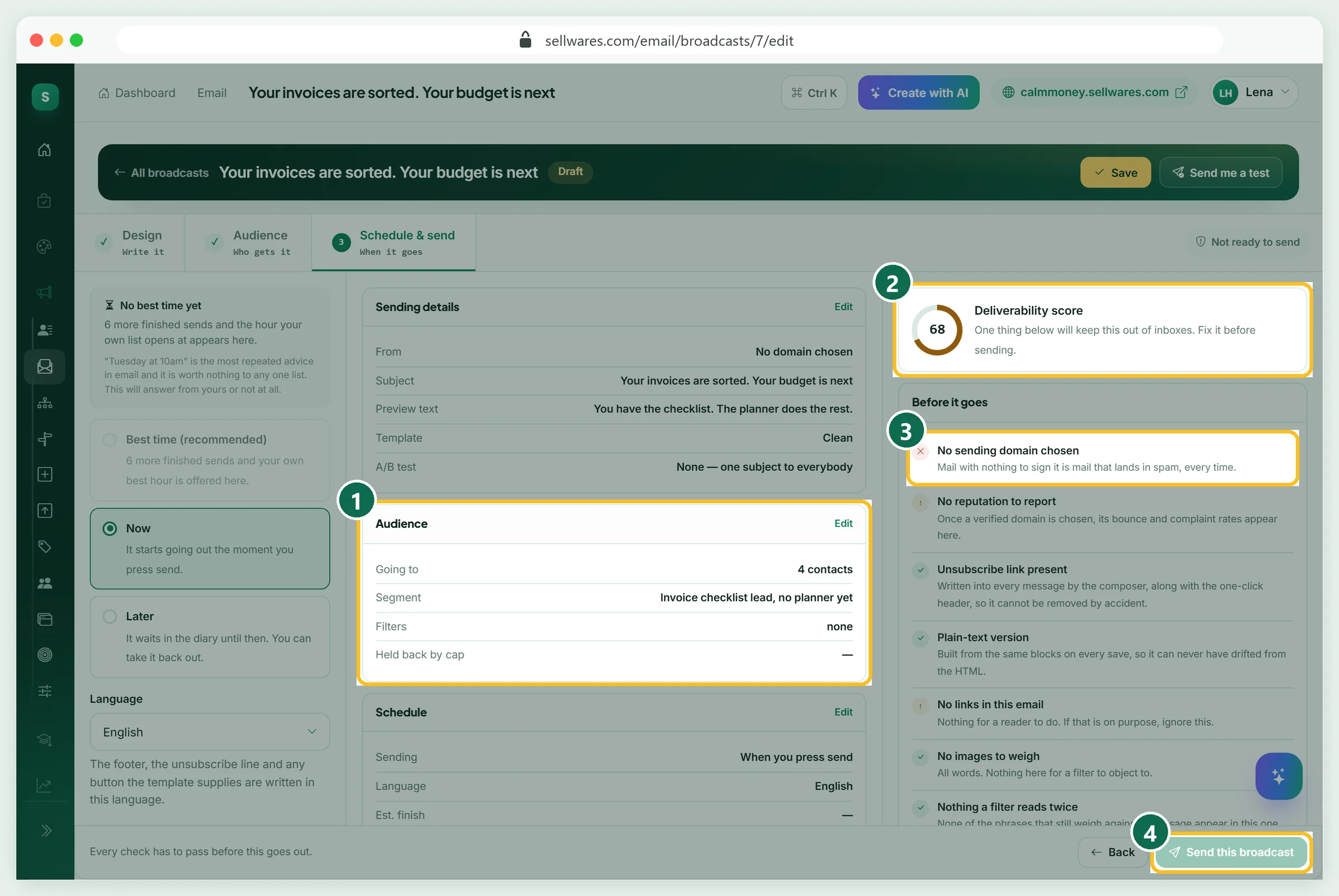
The last tab sums it up (1): four contacts and the segment name. Before it goes gave a deliverability score of 68 (2) and one red item, no sending domain (3). The send button stays grey until every check passes (4). We pressed Save only; nothing was sent.
Keep the segment filled with an automation
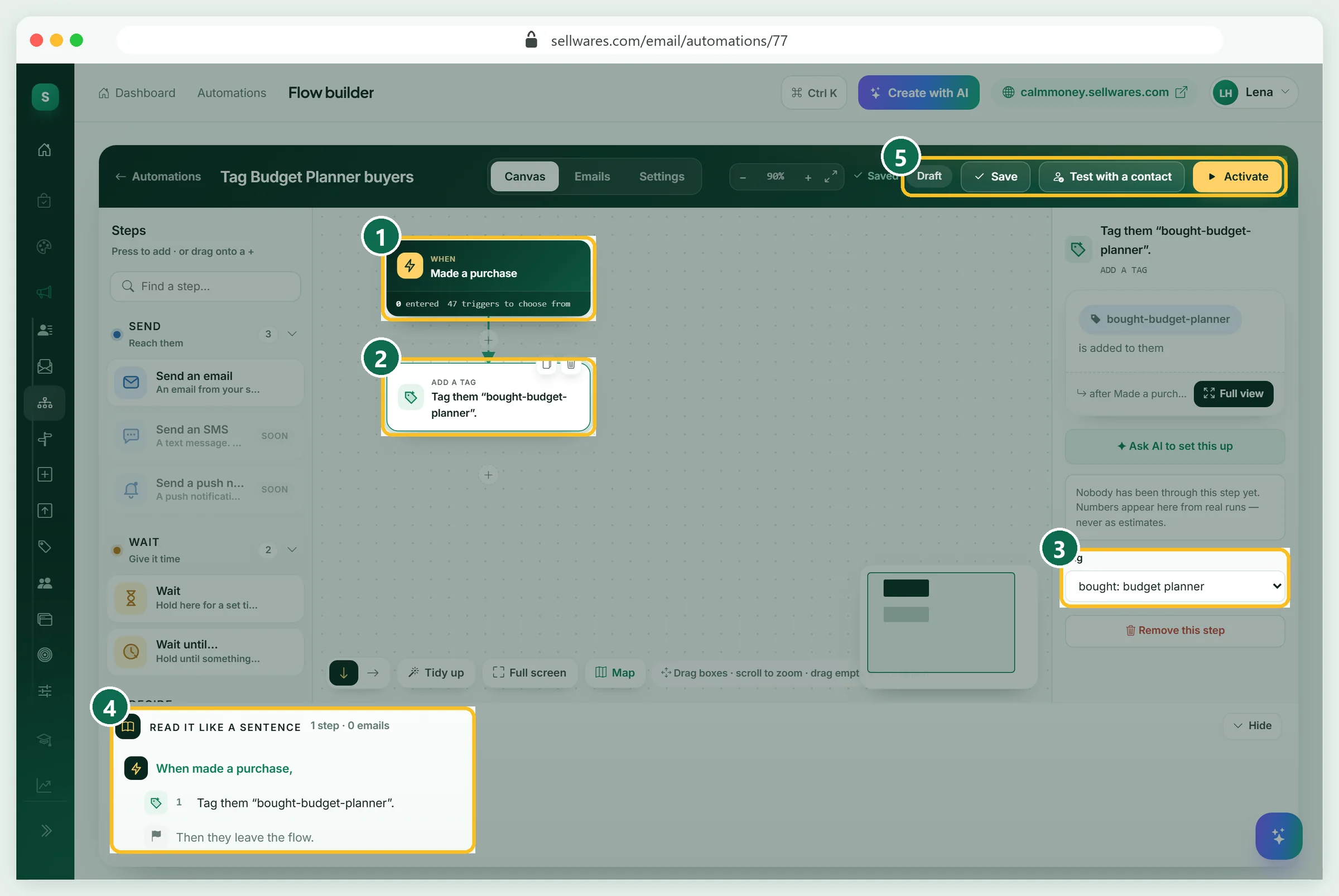
Tags on old buyers came from the import. New buyers need tagging too. In Automations, choose Build from scratch. Pick the trigger Made a purchase (1), add the step Add a tag (2) and choose "bought: budget planner" in Tag (3). The sentence at the bottom (4) reads it back. We left it as a Draft (5); Activate switches it on.
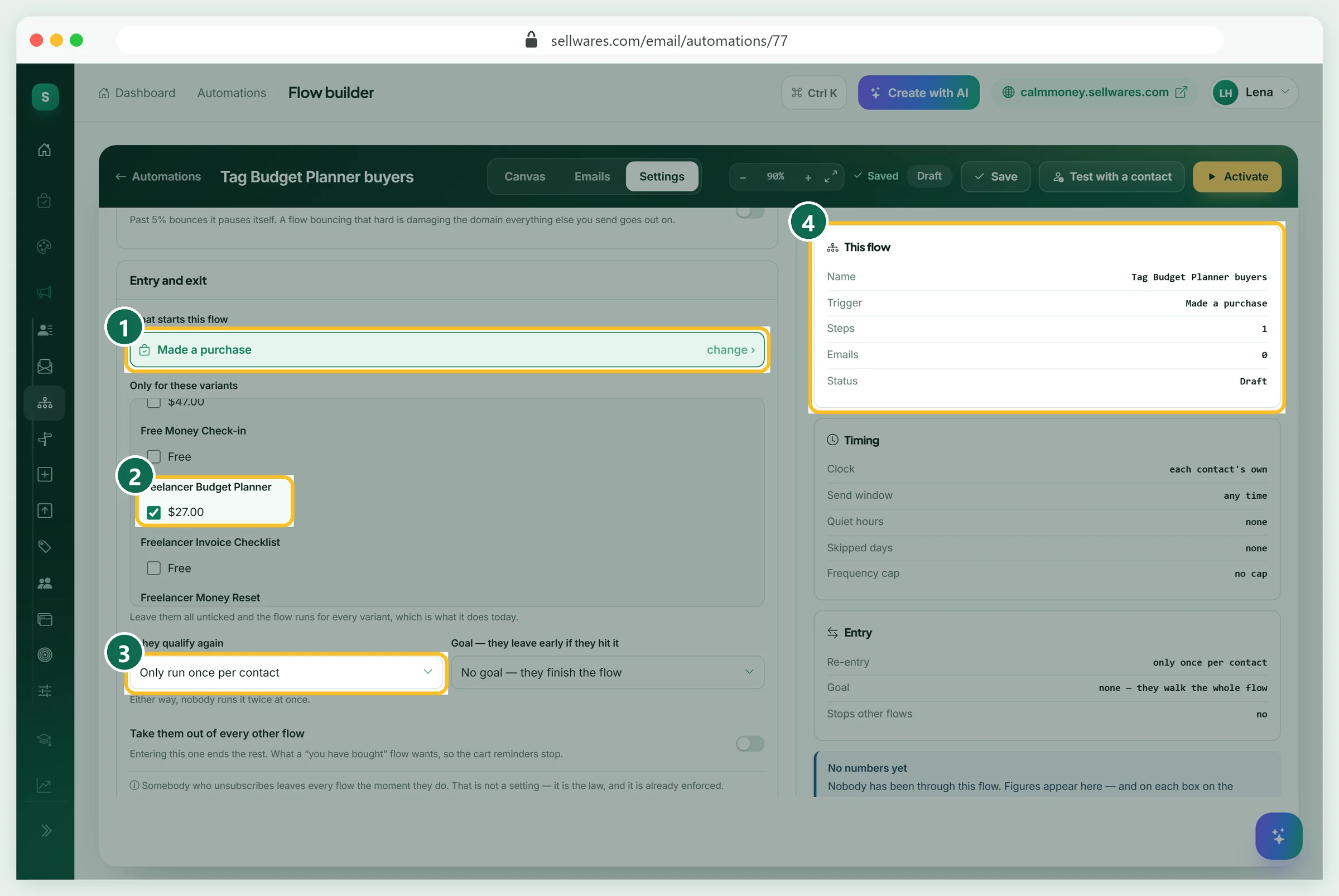
In Settings, the trigger (1) can be limited under Only for these variants. We ticked the $27 Freelancer Budget Planner (2), so other purchases do not get the tag. Keep Only run once per contact (3).
Email segmentation ideas that work for small lists
You do not need thousands of people. Five segments cover most creators:
- Took a freebie, no purchase yet. Send the paid next step.
- Bought product A. Send a setup tip on day three, then product B later.
- Opened in the last 30 days. Your warmest readers; launch to them first.
- Gone quiet for 90 days. Ask once if they still want your emails.
- Interest tags. "interest: coaching" gets the coaching news. Our online coaching business guide shows where those people go next.
The freebie behind the first segment is built in our lead magnet examples guide.
What the top pages leave out
The maths of a send cap. On Free you get 1,000 emails a month. One weekly email to 250 people uses all of it (250 × 4). Send the weekly note to your 60 most engaged readers instead, and you have 760 emails left for buyers and launches.
Free gifts count as orders. Rules like "never bought" catch fewer people than you expect, as Step 6 showed.
Imported buyers are tags, not orders. Our three imported planner buyers showed as Leads in the journey, because no order existed. Segment on the tag.
Email list segmentation best practices also include the law. The FTC's CAN-SPAM guide says opt-outs must be honored within 10 business days, and each message needs a valid postal address (FTC). Anyone who unsubscribes leaves every flow the moment they do. Addresses that must never get mail go on the Suppression list under Email.
If something goes wrong
| What you see | Why | Fix |
|---|---|---|
| Names missing after import | first_name and last_name were left on "Ignore" | Set them to Name and Last name before importing |
| Imported buyers sit under Leads | A tag is not an order | Segment on the buyer tag, not on orders |
| "No purchase" segment misses someone | A free download counts as an order | Use a tag, or Total spent is at most 0 |
| A saved segment shows an old count | Counts are stored when saved | Press the round recount arrow |
| Engagement segment says nobody | Nobody has opened an email yet | Keep it; it fills after your first send |
| Send this broadcast stays grey | No verified sending domain | Set one up under Sending domain |
What we found in the top results
We read the top pages on 8 November 2026. CXL's beginner guide (2020, about 4,200 words) explains segmentation and personalization, with examples from Typeform and Canopy and tool notes on Mailchimp, Vero and GetResponse. Drip's 2022 post gives nine strategies by funnel stage, from signup source to purchase history. Sales Layer covers criteria, benefits and five triggers. Campaign Monitor's short page explains why it matters and quotes two figures from its own resources. CXL's examples page, ranked second, blocked our browser, so we could not read it. None showed a live count, a free download counted as an order, or what a send cap does to a weekly email.
Next steps
Build one segment today: freebie takers who have not bought. Then link it to a short sales funnel so the next step is ready when they click.
Create your free Sellwares store and build your first segment.
Questions
What are some email segmentation examples?
Freebie takers who have not bought, buyers of one product, readers who opened in the last 30 days, people quiet for 90 days, and interest tags such as coaching. In our demo store the first one held 4 of 9 contacts.
What is the difference between segmentation and personalization?
Segmentation decides who gets an email. Personalization changes what each person sees inside it, such as their first name. Most creators start with segmentation, because sending the right email to the right group matters more than a name in the greeting.
How many segments should a small list have?
Start with two or three you will really write to: freebie takers, buyers and recent openers. A segment nobody emails is clutter. Add more when you have an email that fits only one group.
Do segments update themselves?
In Sellwares, yes, when Keep it up to date is on: people who match join and people who stop matching leave. Turn it off to freeze a list, such as everyone on a launch list. A stored count can be refreshed with the recount button.
What is graymail?
Graymail is email people once signed up for but now ignore, such as old newsletters. Segmenting by last open lets you send less to those readers or ask whether they still want your emails.
Sources
Related
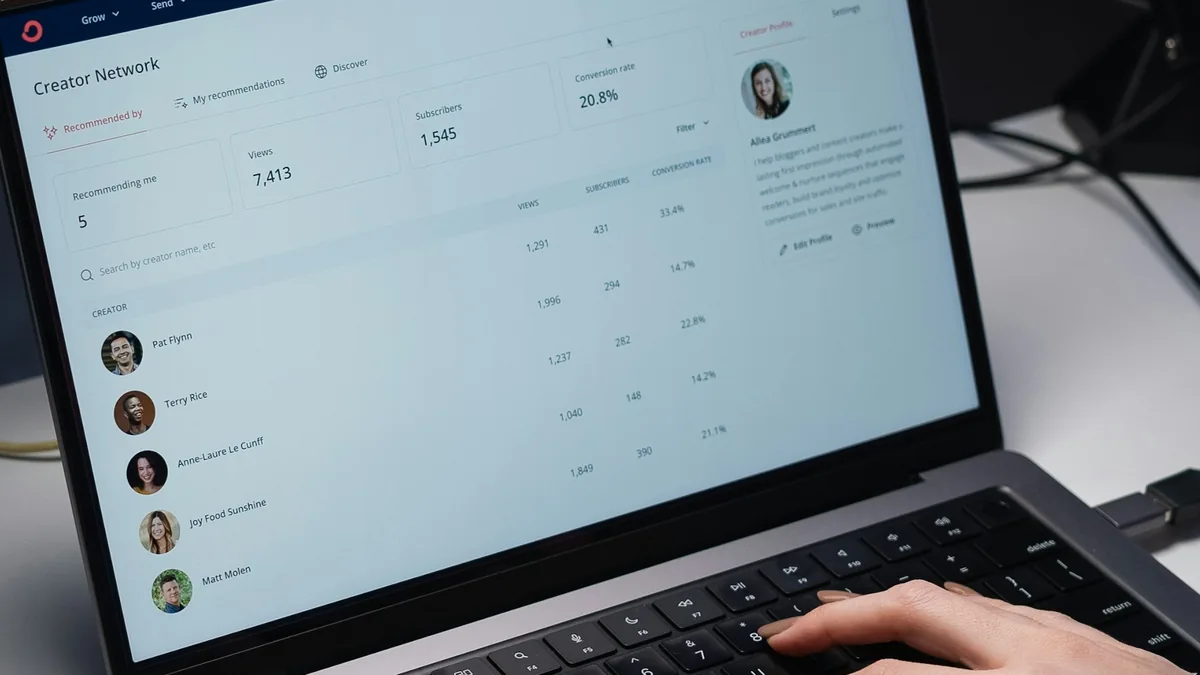 BlogEmail marketing ideas · 6 min read16 Email Marketing Ideas With Subject Lines16 email marketing ideas for small businesses and creators, each with when to send it, a subject line to adapt and what it achieves, plus CAN-SPAM basics.
 Oliver BennettRead the post →
 Sell Digital Products Online with 0% FeesSell ebooks, templates, presets, music and more from your own store. Instant delivery, 0% transaction fee, paid…
 Janie BrooksTake a look →
 Guide30 min · 10 stepsHow to Create a Sales Funnel (Step by Step, 2026)How to create a sales funnel in 10 steps: opt-in, sales page, order bump, one-click upsell and publish, with a real…Janie BrooksFollow the guide →
 BlogStart writing book · 7 min readHow to Start Writing a Book: First StepsHow to start writing a book: turn your idea into one sentence, pick outline or discovery, set a daily word goal and…Oliver BennettRead the post →
 BlogEtsy shop ideas · 11 min read32 Etsy Shop Ideas for 2026: Costs, Fees and What You Keep32 Etsy shop ideas for 2026 with start cost, Etsy's exact fees on an example price and what you keep, plus a free…Oliver BennettRead the post →